Download KSign certificates for your iPhone or iPad and use them to sign IPA files with KSign. Choose a certificate from the list below, download its files, and follow our simple guide to import it into KSign.
Download KSign Certificate
Below are the available KSign certificates. Choose a certificate and tap the download button to save its files to your device.
- Rakuten Securities, Inc.Download Certificate
- HSBC BankDownload Certificate
- Central PowerDownload Certificate
Note: Certificate availability can change. Apple may revoke a signing certificate, which can prevent apps signed with it from installing or opening. If a certificate stops working, check for another available certificate.
What Is a KSign Certificate?
A KSign certificate is used to sign IPA files so they can be installed on an iPhone or iPad. KSign adds a digital signature to the app, which iOS checks during installation.
To sign an IPA, you need the following files:
| File | Purpose |
|---|---|
.p12 |
Contains the certificate and private key used to sign apps. |
.mobileprovision |
Contains the provisioning information required by iOS. |
| Password | Unlocks the .p12 file if it is password-protected. |
These files are usually provided together in a ZIP folder. Download the certificate package, extract it, and import the required files into KSign.
How to Import a KSign Certificate
Once you've downloaded a certificate, follow these steps to add it to KSign.
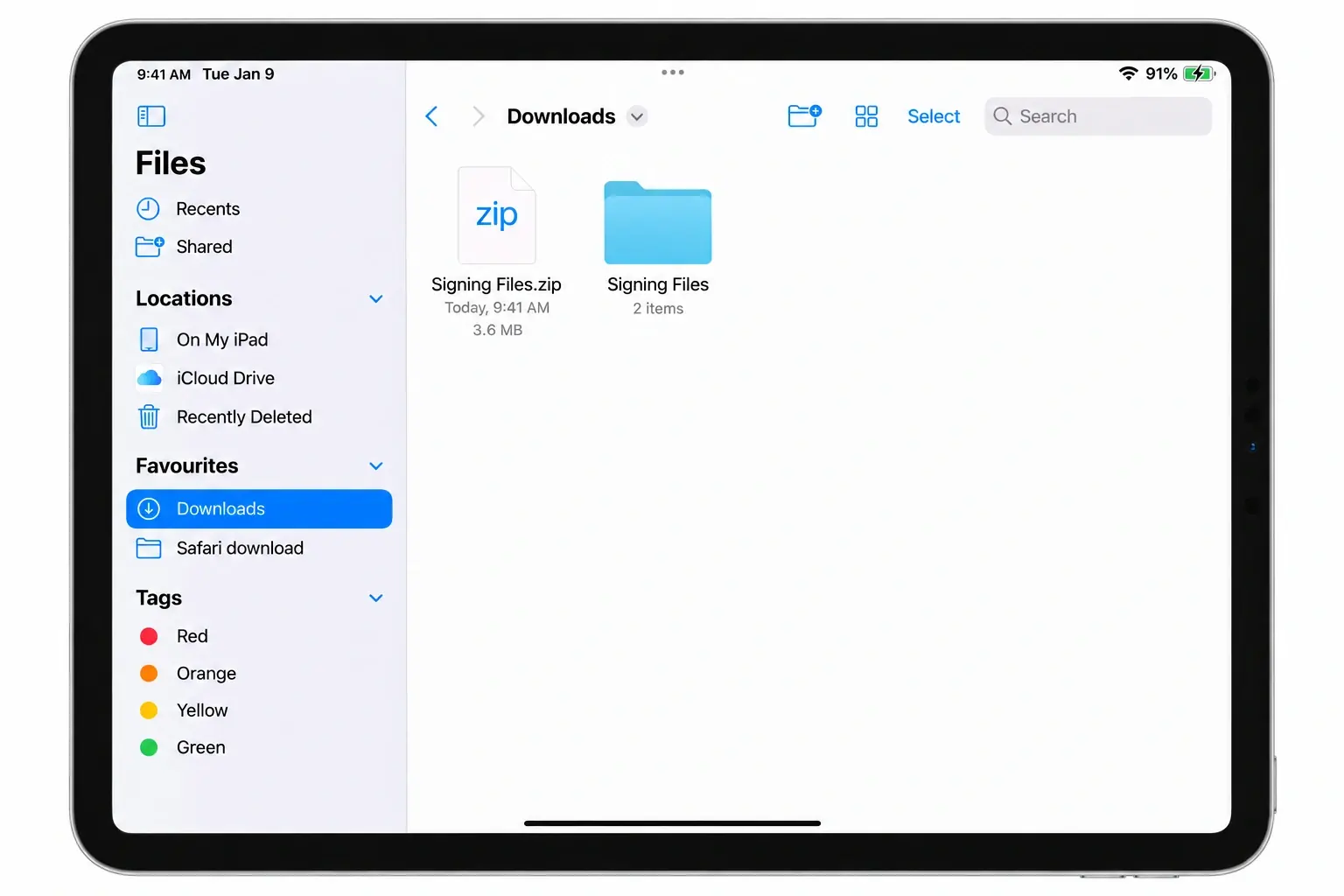
Step 1: Download and Extract the Certificate
Open the Files app on your iPhone or iPad and go to the Downloads folder. Find the certificate ZIP file you downloaded and tap it to extract its contents.
Open the extracted folder and locate the .p12 and .mobileprovision files.
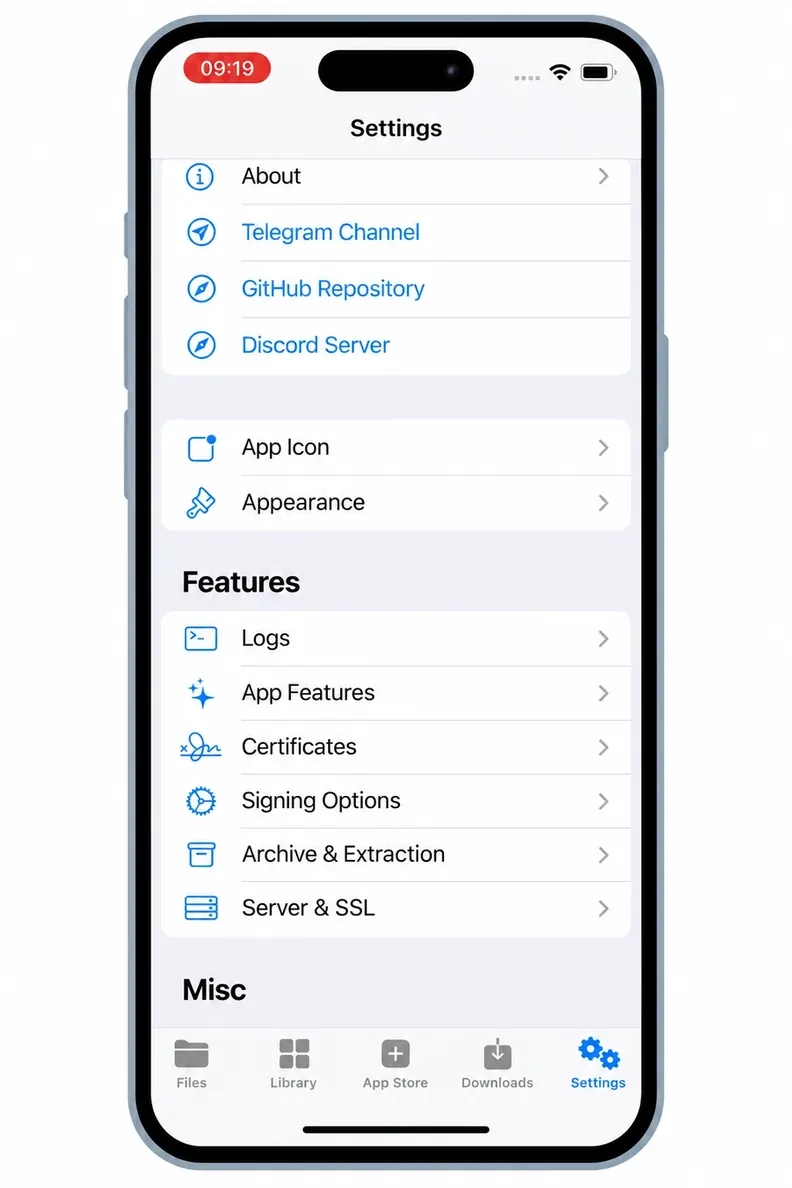
Step 2: Open Certificates in KSign
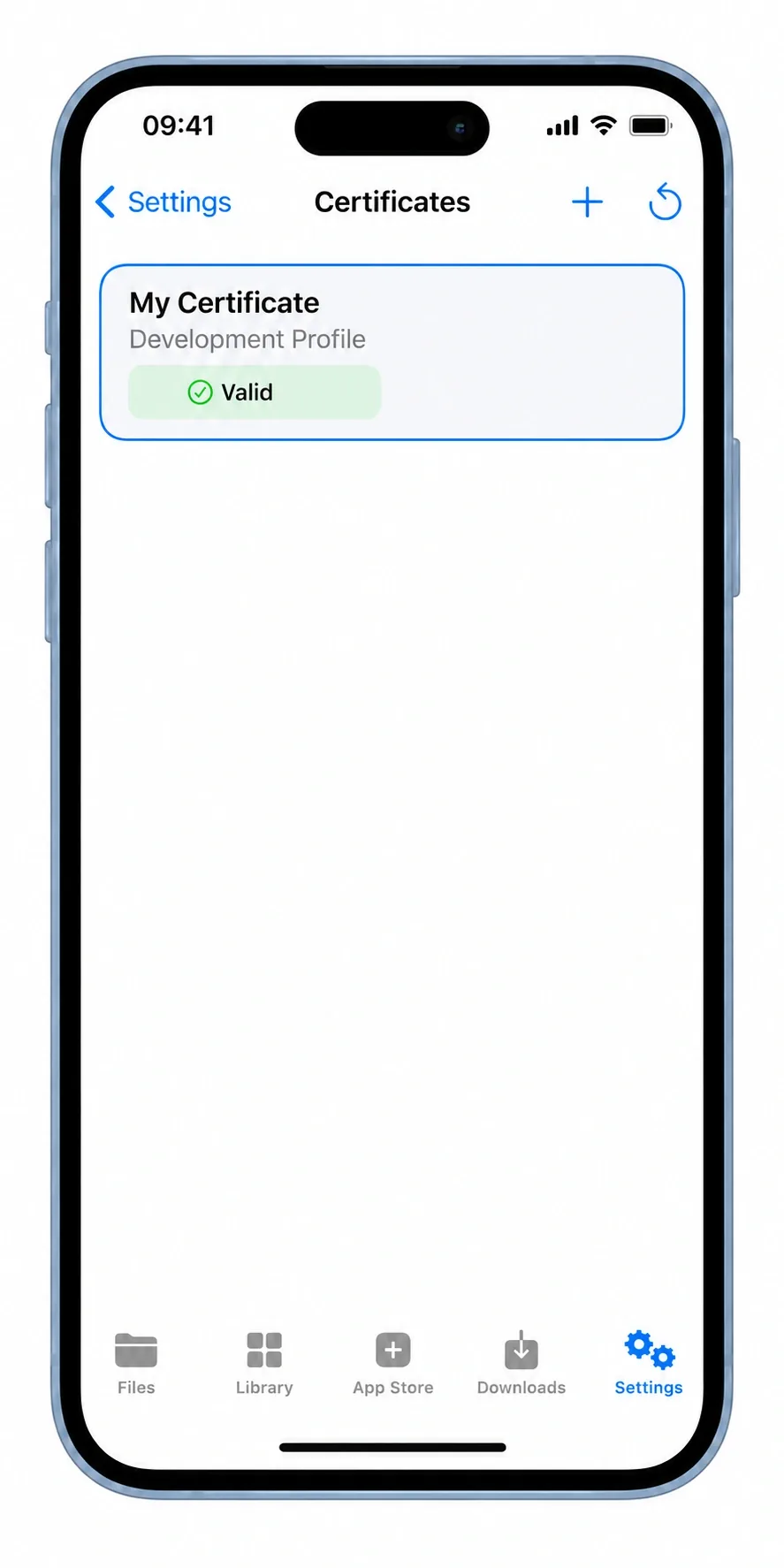
Launch KSign and open Settings. Tap Certificates, then tap the + button in the top-right corner.
This will open the New Certificate screen.
Step 3: Import the Certificate Files
Tap Import Certificate File and select the .p12 file from your extracted folder.
Next, tap Import Provisioning File and select the matching .mobileprovision file.
Make sure both files belong to the same signing certificate package.
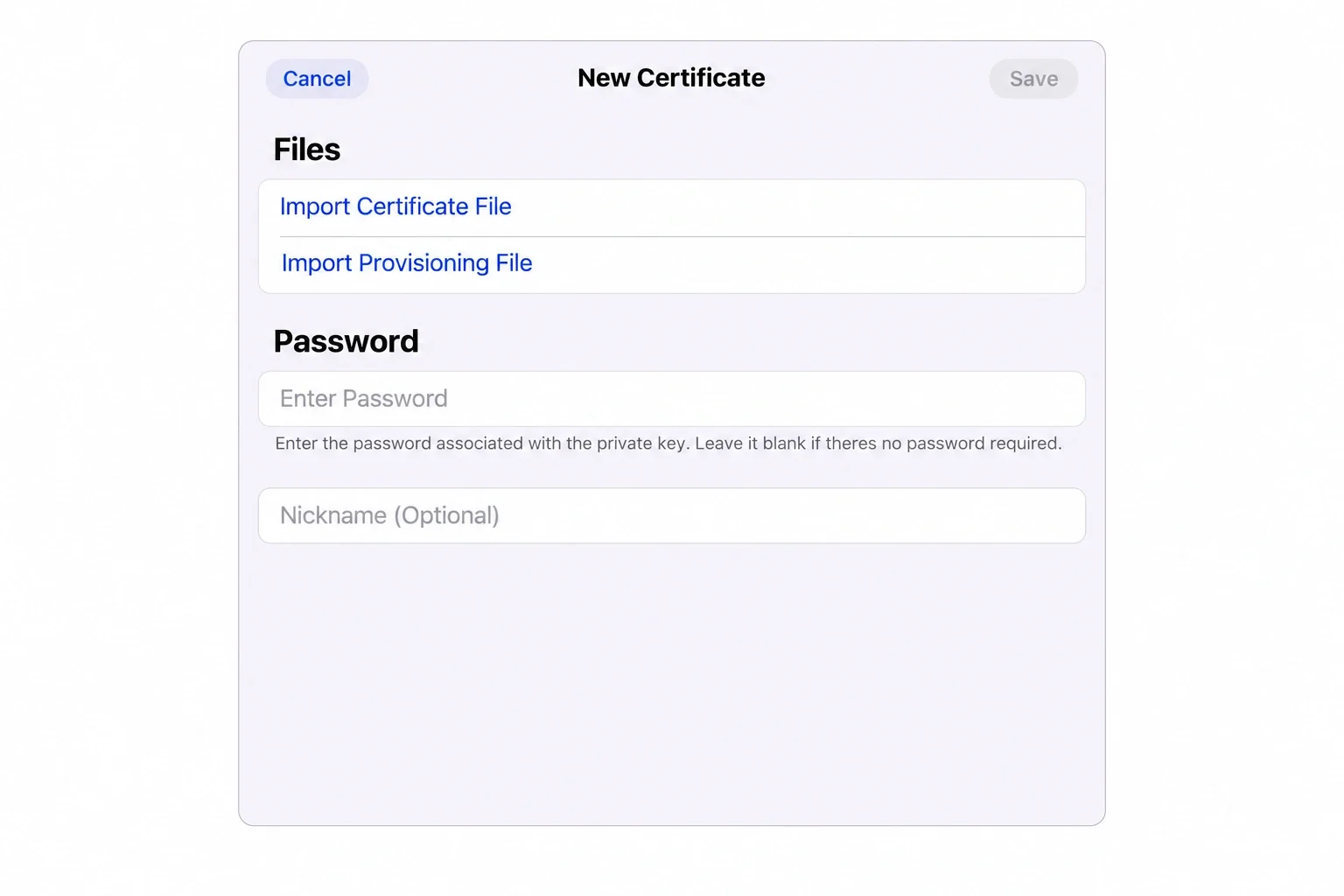
Step 4: Enter Password and Save
Tap Enter Password and enter the password provided with your certificate. If the .p12 file has no password, leave this field empty.
You can also give the certificate a name to recognize it later.
Tap Save. Your imported certificate will now appear in the Certificates list.
How to Sign IPA Files Using KSign Certificate
After importing your certificate, you can use it to sign an IPA file.
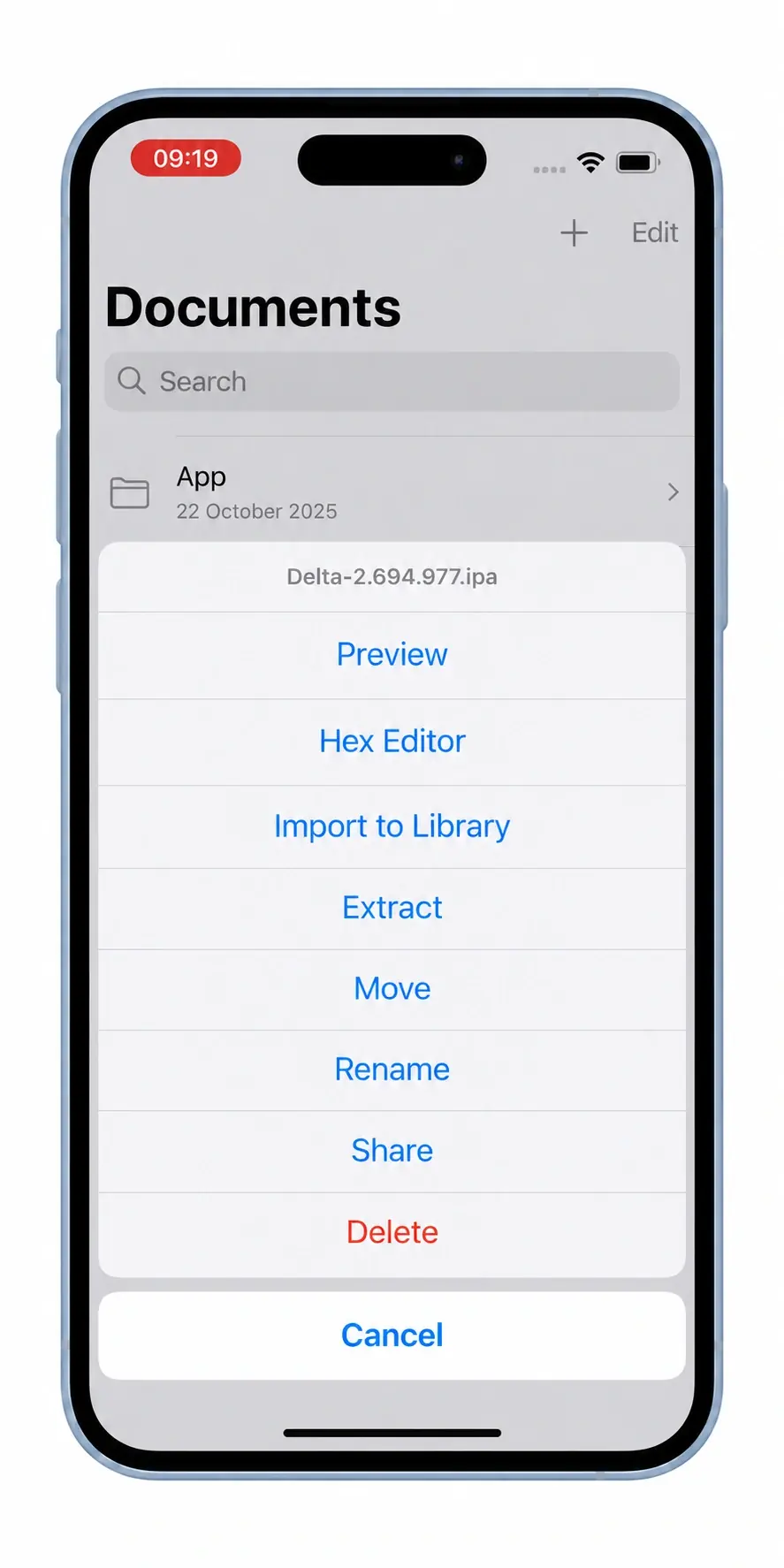
- Open KSign and go to Files.
- Tap + → Import and select the IPA file you want to install.
- Tap the imported IPA and select Import to Library.
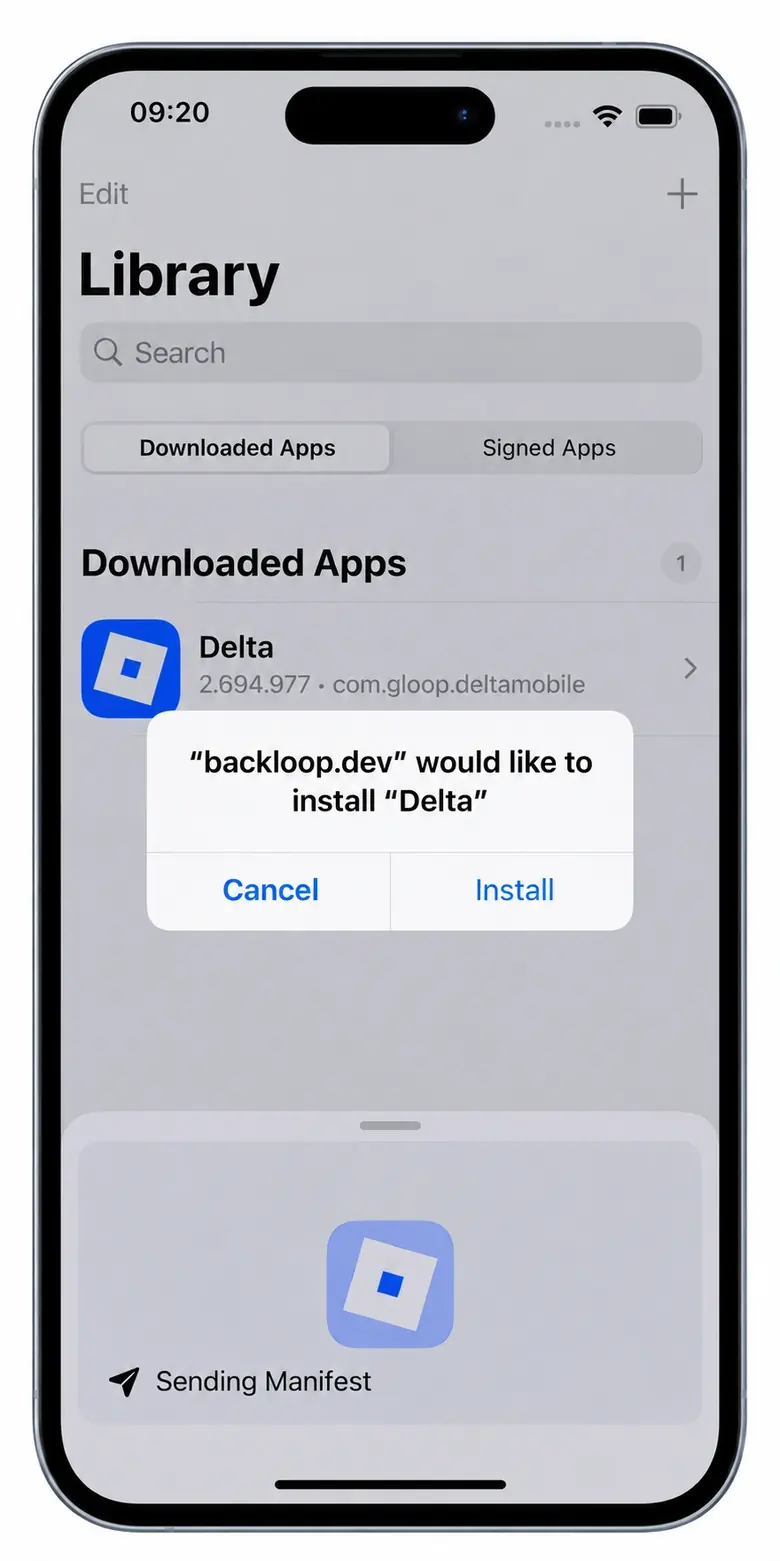
- Open Library → Downloaded Apps.
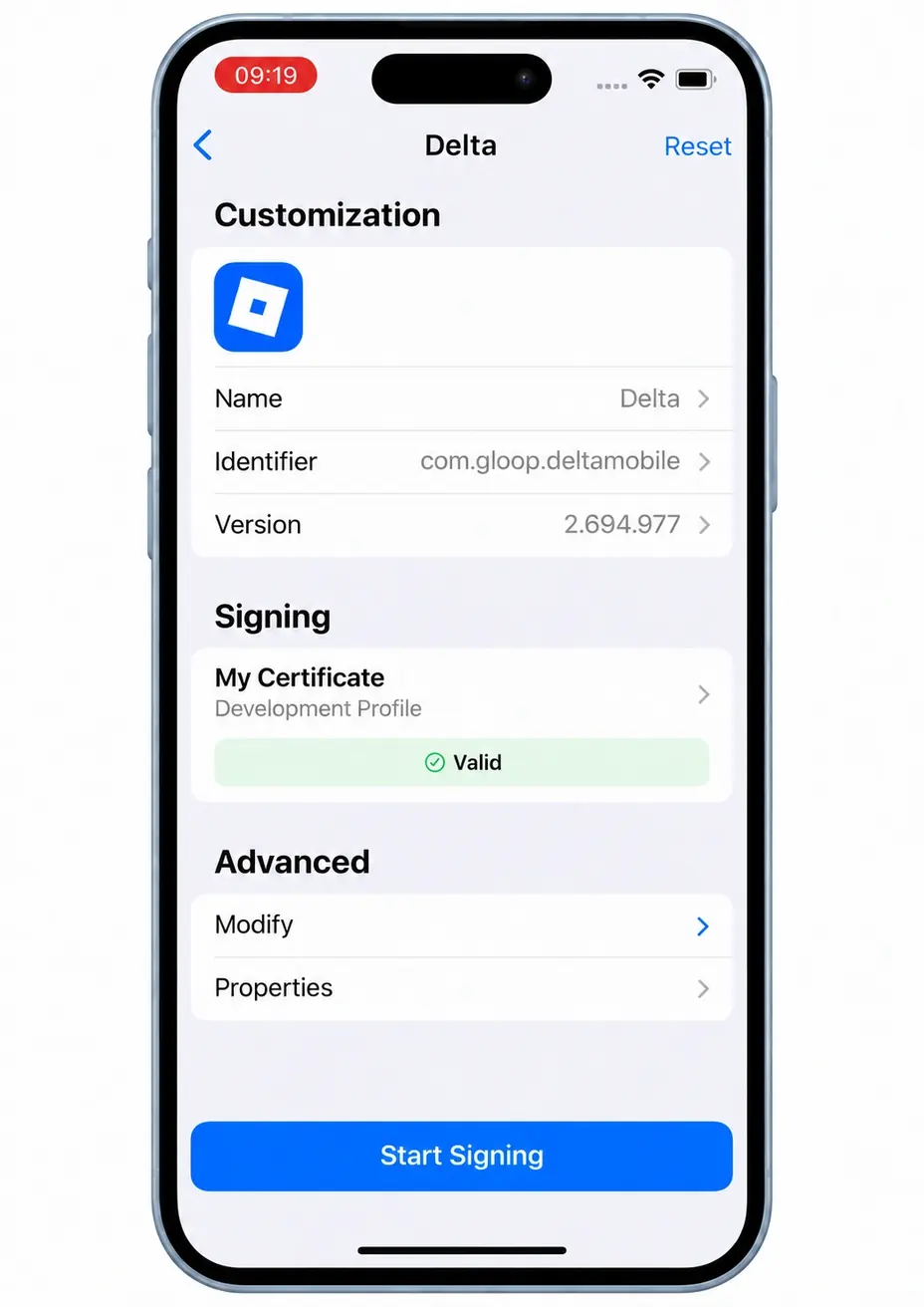
- Select the app and tap Sign & Install.
- Choose your imported KSign certificate under Signing.
- Tap Start Signing and let KSign complete the process.
- When the installation prompt appears, tap Install.
Once the installation finishes, check your Home Screen for the app.
Important: The certificate must be valid and its provisioning profile must support the app and your device. Otherwise, iOS may reject the installation even if KSign completes the signing process.
Common KSign Certificate Errors and Fixes
Sometimes a certificate imports successfully, but signing or installation still fails. Here are some common issues and how to fix them.
1. Invalid Certificate or Bad Password
This usually happens when the .p12 password is incorrect or the certificate file cannot be read.
Fix: Check the password provided with the certificate. Make sure you're importing the correct .p12 file and try again.
2. Certificate Not Showing in KSign
If the certificate doesn't appear after importing, the files may not have been saved correctly.
Fix: Open Settings → Certificates and import the .p12 and .mobileprovision files again. Enter the correct password and tap Save.
3. Unable to Install App
An app may fail to install when the signing certificate is revoked, expired, or incompatible with the provisioning profile or device.
Fix: Check the certificate status and try another valid certificate that supports your device and app.
4. Unable to Verify App
iOS may display a verification error if it cannot validate the app's signature or the signing certificate is no longer trusted.
Fix: Check your internet connection and certificate status. If the certificate has been revoked, you'll need to sign the app again using a valid certificate and compatible provisioning profile.
5. Certificate Expired or Revoked
Signing certificates don't remain valid forever. Once a certificate expires or Apple revokes it, apps signed with that certificate may stop working.
Fix: Download another valid KSign certificate, import it into KSign, and sign the IPA again.
Frequently Asked Questions
Is the KSign certificate free to download?
Yes, the certificates provided on this page are free to download.
Do I need a certificate to use KSign?
You need a compatible signing certificate and provisioning profile to sign IPA files with KSign.
Can I use the same certificate for multiple apps?
Yes, a certificate can sign multiple apps as long as its provisioning profile and signing permissions support them.
Why is my KSign certificate not working?
The certificate may be expired, revoked, or incompatible with your device or app. Check its status and make sure the correct signing files are selected.
Can I install IPA files without a computer?
Yes. With KSign installed and a compatible signing certificate, you can sign and install supported IPA files directly on your iPhone or iPad.
Final Words
Downloading and importing a KSign certificate is simple. Choose a certificate from the download section above, extract its files, and import them into KSign. Once added, select the certificate whenever you need to sign an IPA.
If your certificate stops working, return to this page to check for other available certificates.